Best USB-C Docking Stations for Compact Setups (2026)
Disclosure: As an Amazon Associate, UnfoldDesk earns from qualifying purchases at no extra cost to you. Links marked “Check price on Amazon” are affiliate links.
The Anker 575 USB-C Docking Station is our top pick for most compact setups. It turns a single laptop or mini PC port into eleven — display, USB-A, Ethernet, SD cards, and power — so one cable replaces a tangle of adapters. But the right dock depends on how many monitors you run, whether you need Thunderbolt, and your budget. Below we compare five docks that declutter a small desk, from a sub-$40 hub to a premium Thunderbolt 4 workhorse.
Every pick here is compact enough to sit on or under a desk, powers your laptop while it’s docked, and carries a 4.0+ star Amazon rating across thousands of reviews.
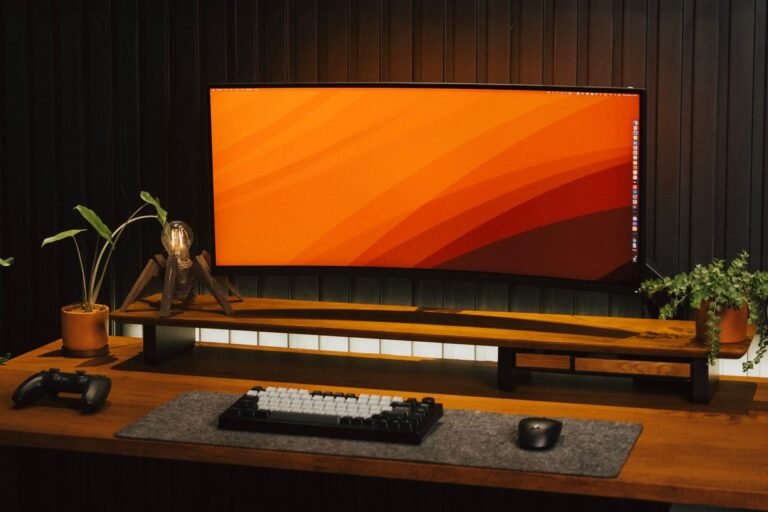
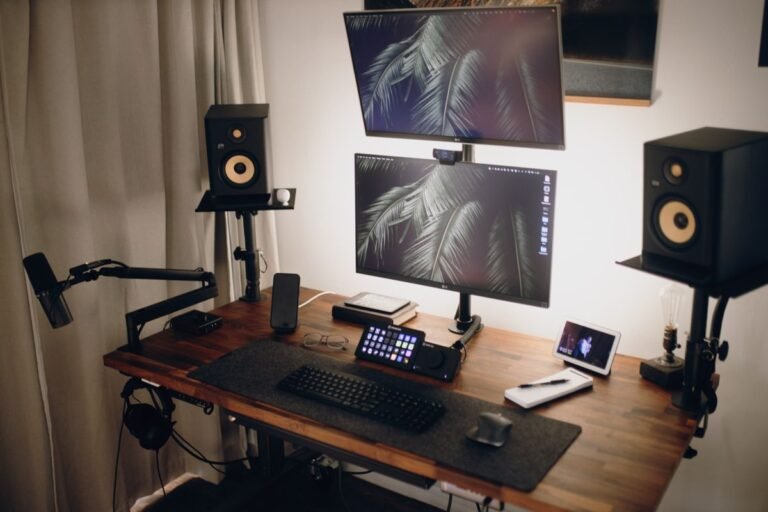
One cable replaces a tangle of adapters and declutters the whole desk.
Our Top Picks at a Glance
| Dock | Best for | Ports | Price |
|---|---|---|---|
| Anker 575 (11-in-1) | Best overall | 11 (HDMI, USB-A, Ethernet, SD) | Check price |
| CalDigit TS4 | Best premium (Thunderbolt 4) | 18 (Thunderbolt, USB, Ethernet) | Check price |
| Plugable 7-in-1 Hub | Best value | 7 (HDMI, USB, SD) | Check price |
| Dell WD19S | Best for business | Modular (video + USB + Ethernet) | Check price |
| UGREEN 7-in-1 Hub | Best budget | 7 (HDMI, USB-A, card readers) | Check price |
Best Overall: Anker 575 USB-C Docking Station
The Anker 575 is the dock that fits most small setups. It’s a single compact box that gives you an HDMI port for a monitor, several USB-A ports for keyboard, mouse, and drives, Ethernet for a stable connection, SD/microSD readers, and pass-through charging for your laptop — all through one cable. For a laptop or mini PC with too few ports, it’s the cleanest fix.
- Why we picked it: the right mix of ports in a small, well-reviewed, reliable package.
- Small-desk friendly: one dock and one cable replace a pile of adapters and dongles.
- Pass-through charging: power your laptop through the dock while it drives the display and peripherals.
| Ports | HDMI, 2× USB-C, 2× USB-A, Ethernet, SD + microSD, audio |
| Video | Up to 4K (check refresh-rate spec for dual display) |
| Power | Up to ~85 W pass-through charging |
| Compatibility | Windows, macOS, ChromeOS |
Pros: Great port selection; compact; reliable; widely reviewed.
Cons: Not Thunderbolt (so no dual 4K60 on some laptops); the single video output may limit multi-monitor setups.
Best for: Most laptop and mini PC users who want one cable to rule them all. Not ideal for: Power users running multiple 4K monitors — see the CalDigit TS4. Check price on Amazon →
Best Premium: CalDigit TS4 (Thunderbolt 4)
The CalDigit TS4 is the dock for people who push a laptop hard. Thunderbolt 4 gives it enormous bandwidth, so it can drive dual 4K monitors, transfer files at full SSD speed, and charge a laptop at up to 98 W — all at once. It has 18 ports, but it’s still tidy enough to sit under a desk and route everything through a single Thunderbolt cable.
| Interface | Thunderbolt 4 |
| Ports | 18 total (Thunderbolt, USB-A/C, Ethernet, SD, audio, etc.) |
| Video | Dual 4K @ 60 Hz (or single 8K) |
| Power | Up to 98 W charging |
Pros: Massive bandwidth and port count; dual 4K60; high power delivery.
Cons: Expensive; overkill if you only connect a keyboard, mouse, and one monitor.
Best for: Creators and power users with multi-monitor, high-bandwidth needs. Not ideal for: Casual users — the Anker 575 does the job for much less. Check price on Amazon →
Best Value: Plugable 7-in-1 USB-C Hub
For a simple, reliable expansion without paying for ports you’ll never use, the Plugable 7-in-1 is the smart choice. It adds HDMI, USB-A ports, and SD readers in a slim, pocketable hub that plugs straight into a laptop or mini PC. It’s the step up from a bare adapter — and it usually costs less than a single branded dongle.
| Ports | HDMI, 2× USB-A, USB-C, SD + microSD |
| Video | Up to 4K (single display) |
| Power | Pass-through charging (check wattage) |
| Form | Slim, portable |
Pros: Affordable; compact; reliable; covers the ports most people actually need.
Cons: No Ethernet; fewer ports than a full dock; single display output.
Best for: Budget buyers who need a monitor, a couple of USB devices, and card readers. Not ideal for: Multi-monitor or wired-Ethernet setups. Check price on Amazon →
Best for Business: Dell WD19S
The Dell WD19S is the workhorse dock for a business or home office that needs to “just work.” It’s a modular dock with solid driver support and the reliability Dell is known for, driving up to two displays while charging the laptop. If your work laptop is a Dell — or you want the most predictable, well-supported dock — this is the one.
| Ports | DisplayPort + HDMI, USB-A/C, Ethernet, audio |
| Video | Up to dual 4K (model/port dependent) |
| Power | Up to 130 W (Dell ExpressCharge) |
| Compatibility | Optimized for Dell; works with many USB-C laptops |
Pros: Rock-solid reliability; dual displays; high power delivery; long support life.
Cons: Bulkier than a hub; best value if you have a Dell laptop.
Best for: Business users and Dell laptop owners who want a dependable, permanent dock. Not ideal for: Travel or bag use — it’s a desktop dock. Check price on Amazon →
Best Budget: UGREEN 7-in-1 USB-C Hub
If you just need a cheap way to add HDMI, USB-A, and card readers to a laptop or mini PC, the UGREEN 7-in-1 is the value pick. It’s small, well-reviewed, and does the core job — one monitor, a few USB devices, and SD cards — for the price of a lunch.
| Ports | HDMI, USB-A, USB-C, SD + microSD |
| Video | Up to 4K (single display) |
| Form | Compact, travel-friendly |
Pros: Very cheap; compact; covers the essentials.
Cons: Fewer ports; no Ethernet; budget build quality.
Best for: Minimal budgets and travel. Not ideal for: Permanent multi-monitor desk setups. Check price on Amazon →
How We Chose These Docks
A dock’s whole job on a small desk is to reduce clutter. We filtered for that, plus the ports people actually use.
- One-cable cleanup: every pick consolidates display, USB, and often charging into a single connection.
- Right size: hubs stay pocketable; full docks are compact enough to sit under the desk.
- Pass-through charging: the dock should power the laptop, not just add ports.
- Reliability: 4.0+ star Amazon ratings across thousands of reviews, from established brands.
What we ruled out: docks that need their own large power brick on the desk, and unbranded or low-review units where driver support is a gamble.
What to Look for in a USB-C Docking Station
USB-C vs. Thunderbolt
A standard USB-C hub is plenty for one 4K monitor, a few USB devices, and charging. Thunderbolt 3/4 docks cost more but add the bandwidth for dual 4K monitors and full-speed external SSDs. Match the dock to your laptop’s port: a Thunderbolt dock on a USB-C-only laptop still works, but you won’t get the full benefit.
How many displays, and at what resolution?
This is the spec that trips people up. Check whether the dock can drive the number of monitors you have at the resolution and refresh rate you want. Many hubs cap out at one 4K display; dual 4K60 usually requires Thunderbolt.
Power delivery
Make sure the dock’s power delivery meets or exceeds your laptop’s needs (typically 60–100 W for modern ultrabooks). If it’s too low, the laptop may charge slowly — or not at all — while docked.
Ethernet and card readers
A wired Ethernet port gives a more stable connection for video calls, and SD readers matter if you import photos or video. If you don’t need either, a simpler hub is cheaper and smaller.
Frequently Asked Questions
Q: What’s the difference between a USB-C hub and a docking station?
A: It’s mostly size and ports. A hub is small and portable with a few ports (usually one display); a docking station is larger with more ports, often Ethernet and higher power delivery, and is meant to stay on a desk. Thunderbolt docks add the most bandwidth.
Q: Can a docking station charge my laptop?
A: Yes, most docks support pass-through charging over USB-C. Check the wattage — it needs to meet your laptop’s power requirement, or charging will be slow. Thunderbolt docks like the CalDigit TS4 can deliver up to 98 W.
Q: How many monitors can a docking station support?
A: It depends on the dock and your laptop. Most USB-C hubs support one 4K display. For dual 4K @ 60 Hz, you usually need a Thunderbolt 3/4 dock and a compatible laptop.
Q: Do docking stations work with mini PCs?
A: Yes. A mini PC with USB-C can use a hub or dock to add ports, Ethernet, and card readers — a handy way to expand storage and connectivity without opening the case.
Q: Is a docking station worth it for a small desk?
A: Usually yes. By consolidating display, USB, and charging into one cable, a dock removes a tangle of adapters and cables — which matters even more in a small space than on a big desk.
Final Thoughts
For most compact setups, the Anker 575 is the best balance of ports and price — one cable to clean up the whole desk. Power users should look at the CalDigit TS4 for dual 4K, and budget buyers will be happy with the UGREEN 7-in-1. Check current prices on Amazon before you buy.
UnfoldDesk is a participant in the Amazon Services LLC Associates Program. Links marked “Check price on Amazon” are affiliate links that earn us a commission at no extra cost to you.